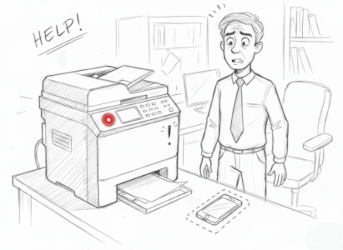
Sound familiar? You urgently need to send a signed contract or a copy of your passport. You approach the multifunction printer (MFP), press the button, and all you get is silence. Or worse, an endless "Connecting..." message on your computer screen.
Instead of getting to work, you start Googling "why the scanner is down," reinstalling drivers, and fiddling with cables.
Stop. Breathe.
There's a way to solve this in 30 seconds without diving into network settings or the whims of technology. All you need is the phone already in your hand.
The Phone Camera as a Scanner
Many still think that taking a photo of a document is "unprofessional." They're right if it's just a simple image in the gallery.
A regular photo looks bad:
- The table and your feet are in the frame.
- The paper appears gray or yellow due to poor lighting.
- The text is small and lacks contrast.
- The file size is 5-10 MB (which email might not accept).
But modern services like phonescan.me work differently. They utilize the phone camera but process the image as a professional office scanner would—only faster.
PRO TIP: Don't send clients or your accountant just photos of documents (JPEG). It's considered bad form. Always convert them to PDF. Here's how to do that.
How to Make a Perfect Scan Without a Printer (Step by Step)
Forget about drivers. Here's what to do if the scanner decides to go on strike:
- Place the document on a contrasting surface. A white sheet on a white table is bad (the scanner struggles to find the edges). A white sheet on a dark table is ideal.
- Open phonescan.me. No downloads or installations are needed.
- Take the picture. Hold the phone parallel to the paper.
- Wait a couple of seconds.
In the end, you'll have a clean image that looks like it was run through an office scanner.
Why Is This Method Better Than a Regular Scanner?
Even if your printer suddenly "comes back to life," scanning with your phone often wins on convenience:
- Mobility: You can scan a signed act in a taxi, at a café, or on a construction site. You don't need an outlet or a USB cable.
- Multi-page Capability: Need to compile a 10-page contract into one file? Just photograph them one by one.
- Quality: Built-in filters remove yellowing from the paper and make the text more contrasting. This is especially helpful when scanning crumpled receipts.
Next time your computer "can't see" the printer, don't waste your nerves. Technology should work for you, not the other way around. Just pull out your phone and wrap up the task in a minute.