You've scanned (or photographed) 20 pages of a contract. You click "Send" in your email, the upload bar crawls endlessly, and then an error appears: "Attachment size exceeds the allowed limit."
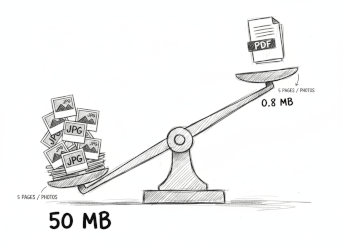
The problem is that modern cameras shoot too well. One high-resolution document photo can weigh 5–10 MB. A batch of 10 sheets is already 100 MB. No corporate email will let that through.
You don't need to send "heavy" photos of paper texture. You need a light document.
Removing the Unnecessary
Why does a photo weigh so much? Because the camera saves millions of color shades: the color of your desk, shadows, paper yellowness, light spots. This is "junk" information that isn't needed for reading text but takes up 90% of the file size.
The phonescan.me service works as a smart filter:
Binarization. We turn millions of colors into two: black (text) and white (background).
Cleaning. We discard information about desk texture and shadows.
As a result, instead of a "heavy" color photo, you get a crystal-clear black-and-white scan that weighs 50–100 times less than the original.
Pro tip: If you need to send a very large document (50+ pages) with poor internet, always choose the "Black & White" filter. Color scans and even "Grayscale" mode weigh more. Pure B&W is the lightest and most contrasty format for printing.
Why PDF is Better Than an Archive with Images
Another mistake is sending scans as a set of images or a ZIP archive. This is inconvenient for the recipient (they have to download, unpack) and inefficient in size.
Our service packages pages into a multi-page PDF. Inside this format, compression algorithms work that were created specifically for documents.
Result:
- A 50-page contract weighs less than 5 MB.
- It flies into any mailbox (Gmail, Outlook, corporate servers).
- It opens on any device in a fraction of a second.
How to Send a Light File Right Now
- Scan the document through phonescan.me.
- Click "Share" or "Save".
- The service will automatically compress the data. You'll see the final file size before sending.
No more searching for online compressors or splitting the email into three parts ("Part 1", "Part 2"...). Send everything as one light file.
Don't clog your phone's memory and clients' mailboxes with "heavy" photos. A good scan is clean text and a light file. Respect your interlocutor's traffic.